Question

AI Scorecard - How do I automatically score previous recorded calls?

  • February 24, 2026
  • 1 reply
  • 12 views

Hi!

So I’ve just set up an AI Scorecard and enabled automatic review. 

I have published the AI scorecard and would now like to let the AI scorecard review past calls. 

I’ve searched through the help center but can’t seem to find how this is done.

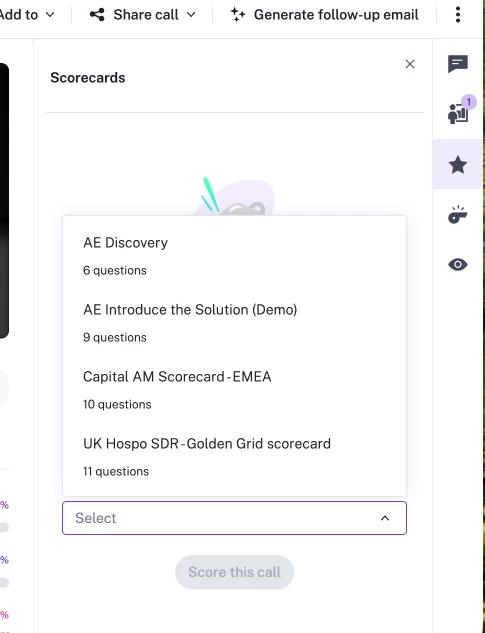
When I go to the conversations search and I select a recording for which the AI scorecard should automatically be applied to, I can’t even select the scorecard on the right panel. 

I’m not sure what I’m doing wrong. My end goal is that I have multiple AI scorecards and that based on the call type, these recordings are automatically scored. I then want to create a folder (stream) with best recording of each meeting type. These recordings should automatically be added to the library based on the score. 

I thought this is possible but not sure how to continue. Does someone has experience with this?
 

1 reply

Nisha Baxi
  • Community Manager
  • February 24, 2026

@Chantal Verhoeve 

You’re not doing anything “wrong” — there are just a few product behaviors and limits that aren’t obvious from the call page UI. Here’s how this all works and how to get to your end state.

1. Applying an AI scorecard to past calls

AI scorecards that are set to “Automatic review” do not become selectable on the call page — they run in the background based on filters and cannot be manually applied from the right-hand panel. That’s why you can’t pick your automatic scorecard when you open a specific recording.

To have your automatic scorecard review past calls, you need to trigger the backfill from the scorecard settings, not from the conversation itself:

  1. Go to:
    Admin Center > Agent Studio > AI Call Reviewer > Settings.

  2. Find your published automatic scorecard, click the three‑dot menu next to it, and choose Edit.

  3. In the top‑right corner of the scorecard editor, click the menu and choose Apply to past calls.

  4. Choose how far back you want to go (up to the last 90 days) and click Apply.

  5. Gong will process matching calls in the background and send you an email when it’s done.

Important details and limitations:

  • Only scorecards that are:

    • Set to Automatic review
    • Published, and
    • Have at least one filter defined

    can be applied to past calls.

  • The retroactive review limit is 90 days back from today for self‑service backfill.

  • Only calls that match the scorecard’s filters (call type, owner, etc.) will be reviewed.

This is also why a support ticket you may have seen references that the “Apply to past calls” button is the expected way to do retroactive AI scoring and confirms the 90‑day limit.

2. Using multiple AI scorecards by call type

You can absolutely have different AI scorecards that automatically apply based on call type or other call attributes — this is done via the Filters on each scorecard:

  1. In the same AI Call Reviewer > Settings area, open or create a scorecard and turn on Automatic review.

  2. Under Settings > Filters, configure which calls should be automatically reviewed with this scorecard. At least one filter is required for an automatic scorecard.

  3. For each meeting type, create a separate automatic scorecard and:

    • Set the Filters to match that specific call type (e.g., “Discovery,” “Demo,” “QBR,” region, team, etc.).
    • Ensure each question’s AI source is set to Get answer by AI (required for automatic review).
    • If you include an overall score question, set it to Calculated score (required on automatic scorecards).
  4. Publish each scorecard.

Once published, Gong AI will:

  • Automatically review new calls going forward that match each scorecard’s filters.
  • Review past 90 days of calls that match those filters when you explicitly run Apply to past calls on each scorecard (per section 1).

Also note:

  • A given call can have multiple scorecards, so if filters overlap, more than one scorecard can be applied to the same recording.

3. Creating “best call” streams/folders based on score

There are two separate concepts here:

  • Streams – dynamic collections of calls based on filters (created from the Search page).
  • Library folders – static collections where you or others explicitly add calls or snippets.

What you can fully automate today:

  1. Once your automatic scorecards are running and generating an overall score, those scores are available as call data for filtering and reporting.

  2. You can create streams that automatically collect calls that meet certain criteria, including call filters. Streams are defined by filters and continuously collect any new calls that match them.

  3. To approximate “best recordings per meeting type,” you’d:

    • Ensure each automatic scorecard has an Overall score question (calculated).
    • Wait for Gong to complete automatic reviews for the relevant calls.
    • Go to **Conversations
      Search**, filter for:
      • The relevant call type / filters for that meeting type, and
      • The scorecard + minimum overall score (via the scorecard/score filters in search; UI specifics may vary but the article confirms overall scores are filterable).
    • Once you have that filtered set, click Create stream. This creates a stream that will “automatically collect calls that are important to you and your team” that match those filters going forward.

  4. When creating the stream, you can save it into Your Library or the Company Library, and optionally enable Slack/email notifications, but the key is that the stream itself auto-updates as new high‑scoring calls come in that match its filters.

What is not fully automatic today:

  • Library folder membership itself is not score‑driven or automatic. Adding calls or snippets to a folder is a manual action (Add to > Add to Library from the call page, or from the snippet UI).

So, the realistic “best call” setup is:

  • Use streams as your dynamic, auto‑updated “best calls by meeting type” views (based on score + call filters).
  • Optionally, periodically:
    • Open those streams,
    • Manually Add to Library the very top exemplars into curated training folders (e.g., “Top 10 Discovery Calls”) if you want a smaller, hand‑picked library collection.

This gives you:

  • Automation for:

    • Scoring (AI scorecards)
    • Collecting top calls in up‑to‑date streams
  • Manual curation for:

    • The final “hall of fame” library folders, when you want very tight control.