














An area dedicated to our Gong customers
Recently active
Good morning, I would like to know how is the process to configure gong with the following requests:1. We want to know how to control the recordings or make them private for some users.Is it possible to add Tracker's to Gong to automatically detect the mentions of some phrases?
Gong is the only tool you need to run your 1:1s. With all of the valuable, fact-based information that lives in Gong, managers have everything they need to facilitate impactful coaching opportunities with their reps. This is going to push many people’s Gong knowledge. If you have lived primarily in the Calls and Deals Tab you will now explore new application areas. This is a list of recommended Gong pages to use to run your 1:1s. FOCUS AREA WHERE IN GONG VALUE Upcoming Meetings ACTIVITY Tab View upcoming meetings Identify where you can help Instruct rep where to focus attention View meeting follow ups in same window Deal Status DEALS Tab Identify risk using warnings Understand next steps Use multiple boards (All, Outliers, Deals with Warnings etc.) Deal Risks TEAM Tab Deal Drivers Identify pipeline trouble spots Coaching Check-In TEAM Tab Coa
If your team uses a Zoom Pro license, you can now enjoy the benefits of Native Zoom! To set things up, follow the steps in this first article, then the steps in this second article. Happy recording!
Currently Owners can not be replaced by other fields in the CRM. How would you make a field from the CRM a user field, so you can replace the owner field with a field like ‘Sales Engineer’?
I would love the option of having an Admin seat that doesn’t cost. I have a revenue operations manager or a people Ops person who now makes sure seats are created for all employees when they join the company. Since the admin seat for Gong has to be paid, I still have to be the one to create this and we actually give everyone access to Gong at our company since we use certain gong calls for our employee onboarding no matter the role! Any possibility of this?
If you’re on a company-wide Google or Office365 connection and notice that one of your users has a red mic/email icon on the Team Members page, our system probably doesn’t have permission to view that user’s calendar or emails. The solution? Check to see if they’re listed in the same Organizational Unit in your email provider where the Gong app is installed.For more information on connecting your email provider, check out our articles for Google and Office365.
Hi! Today I had a call with a customer and it’s taking longer than usual to “import”. Could you please advise? Thanks!
If there aren’t any Interaction Stats populating your Stats page, there probably aren’t any calls that fit the “Whisper for interaction stats” filters.To learn more, hover over the “What’s This?” tooltip in the “Recommendations” box to learn which calls get interaction stats:Admins can adjust the filters by visiting the “Whisper for interaction stats” page, and following the steps shown here.
Hello! I’m curious to know if any fellow Gong community members have implemented Gong coaching metrics in comp plans? We’re using “Calls Listened to” for ramping MBOs- so far so good!
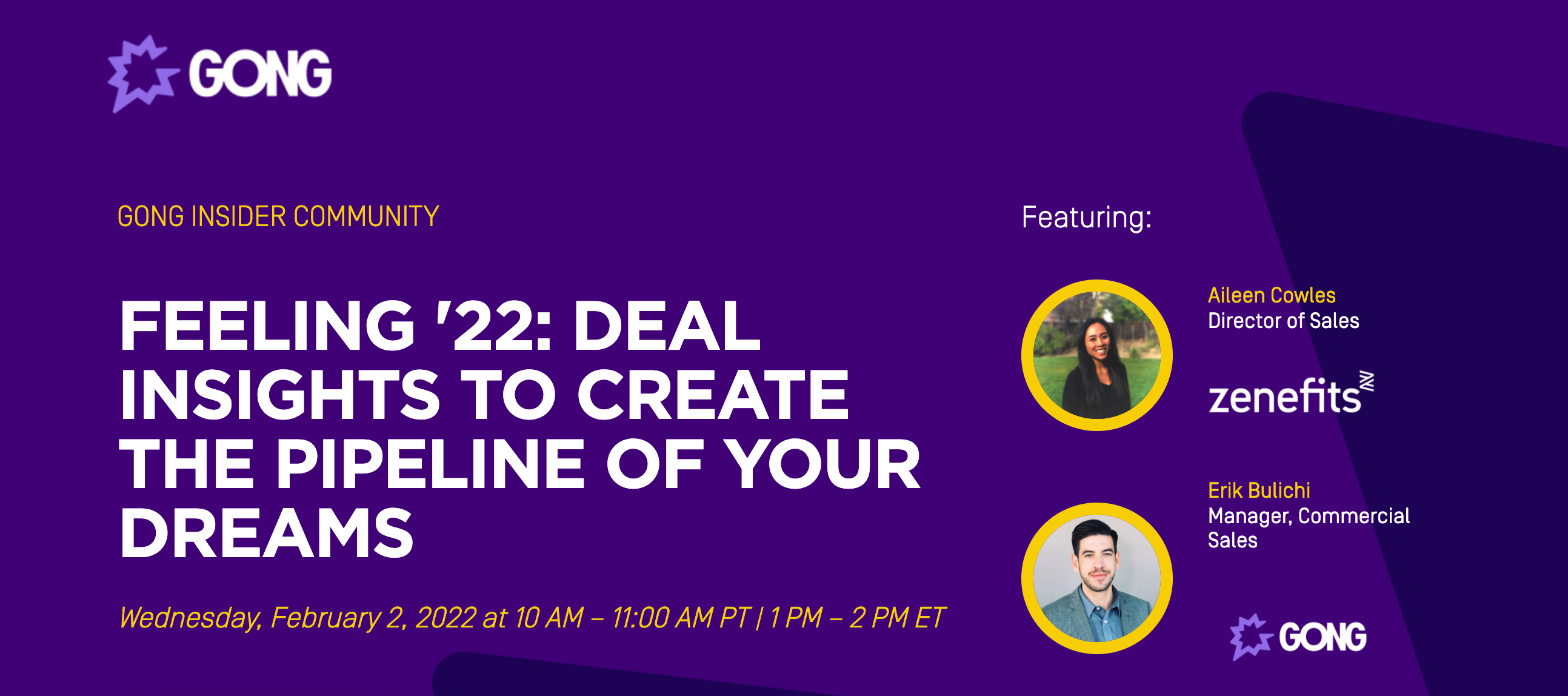
Thanks for coming to our recent customer event! As promised, here are tips to help you leverage Deal Insights to devise a blueprint for deal success and increase predictability in your pipeline.Multithread early with prospects to give AEs the ability to strategize and increase team sellingA sign of a healthy deal is seeing that a rep is in touch with multiple contacts at a company. This multi-threaded approach helps to mitigate risk if your main contact gets promoted, leaves the company, or for any other reason is no longer part of the buying process.This strategy also helps to ensure that you build a base of influencers, including anyone who will have an input in the decision making process. Winning deals typically have multiple champions at the prospect.Gong’s Engagement Map allows you to see who your reps are in touch with on active deals, and how often they are connecting to make sure you are on top of your outreach!Ensure Reps are working with enough of the RIGHT contacts Understa
Hey new Gong customers — this one’s for you! Onboarding with Gong is exciting and there’s a lot to learn. If you’re currently going through onboarding, you may find yourself wondering how long it will take until you’re ready to launch, where to go when you have questions, and what resources are available to you during this time. I sat down with Gong Professional Services Consultant @Sophie Greenspan, who helps Gong customers like you with the technical support that you need to be set up with Gong for long-term success. In this interview, you’ll get answers to the top 10 most frequently asked questions during onboarding, including: What will I learn during onboarding? Who do I ask when I have questions during onboarding? What should I do before my account customization meeting? …and so much more! Tune in to this 10-minute video for the answers to all of your onboarding questions, and shoutout to Sophie and the entire professional services team for making onboarding with Go
If you try to record a call with Gong but get a message that you don’t have permission, the issue may be with the settings in the Permission Profile to which you’re assigned. Reach out to your technical admin to do one of the following: Switch to a Permission Profile that allows call recording Update your current Permission Profile to allow call recording (Note: This will affect all users assigned to that Permission Profile.) For more on Permission Profiles, technical admins can read the help article, here.
If your permission profile in Gong allows you to manually record calls, you can use assistant@gong.io to record one-off calendar events. That could come in handy in several scenarios: Some teams don’t record internal calls, but if you need to, you can add assistant@gong.io to your calendar event before the internal call’s start time, and we’ll record it. If you don’t want all of your calls to record automatically, but want a few calls to record, ask your admin to turn off your data capture settings. Then you can manually add assistant@gong.io to the calendar events you want to record.
I use Zoom through Gong linked to my calendar.If a client joins the meeting before me it says ‘Meeting scheduled for 24th September 2021’.This doesn’t reflect well on me. It should say something like The Host will let you in shortly.When I schedule meetings direct through Zoom, it doesn’t say Meeting Scheduled for etc.Can anyone else with the Gong-Zoom-Google Calendar integration please?
Users can listen to their recorded Gong calls without leaving Salesforce! To enable this as an admin, follow the steps in this help center article. Getting an XML-related error? Ensure that you copied/pasted the code as-is in Step #3.Still have questions? Reach out to our Customer Support team here!
Our favorite Native Zoom hack to ensure your call is always recorded as expected is this: Check to see if the “Recording” icon is enabled in the top left corner when you join a meeting room.If it isn't, manually enable “Record to Cloud,” and if there's an associated calendar event, we'll import it. If there isn’t an associated calendar event, at least the call will be in your Zoom account in the ‘Recordings’ section. You can then manually upload the call once it’s over!
Do you know why I am seeing GONG ID’s on the contact level, but Gong CALLS on the Opportunity and Account levels?
Coming from GONG to Salesforce, how are conversation owners determined and how are task owners determined as they don’t align and I would like to edit.
How can I make a simple report of GONG CALLS in Salesforce? Not tied to opps, just calls in general. I used to be able to do this with my old sales recording tool and i currently do it with Outreach now. Any insight would help SO much! :)
You might notice that the data on the ‘Stats page > Gong Usage’ tab is a bit different from the data you see on the ‘Coaching Metrics’ page. That’s because the Coaching Metrics page includes data for a manager and their direct team, while the Gong Usage tab includes data across all teams. So, for example, manager A may see seven “Calls with comments” in Gong Usage, but only five “Calls with comments” in Coaching Metrics. That’s because the manager commented on seven calls, five of which are for calls owned by users on their team, and two of which are owned by users outside their team.
If you’re properly listed as the call owner, but Interaction Stats still don’t appear for the call, double check to see whether the speaker talk track shows your name exactly as it’s listed in Gong.If the speaker track is even slightly different, we won’t be able to associate the Interaction Stats with your account. Correct it by ensuring that your display name within the web conferencing system you use on the call is the same as your Gong name.
If your call shows the incorrect call owner, you can now manually change the owner within the UI. Simply navigate to any Call page and select the edit icon next to the owner’s name. Now enter the new owner’s name. The Interaction Stats for the call will now associate with the new owner. Learn more about this process here.
I understand I can set up automated alerts to go to slack, but is it possible to pass the commented snippet into Slack? My ideal workflow post call is for the rep to be able to route highlighted sections around the org to different parties who can help answer. Automated alerts won’t allow for the editorialization. Or is the best way via dummy email address which push via a webhook?
I am having some trouble with Gong reporting and was hoping somebody in the community could help me out: I am looking for a Gong report showing talk time Week over week by our account executives. I am trying to see if the % is starting to shift downward since we put our new playbooks into practice. Is this possible with Gong?
In Gong, you can share your recorded calls with internal and external users. Here’s how: Share internally: Navigate to any Call page in Gong and select ‘Share > Share internally’. This lets you send an email to an internal user or get a shareable link. The user has to log into Gong to view the link. Share externally: Navigate to any Call page and select ‘Share > Share with customers’. You can send them an email or get a shareable link. You can also set an expiration date so customers can only see the call for a certain length of time.Want to learn more? Check out our help article, here.
Create an account
Enter your E-mail address. We'll send you an e-mail with instructions to reset your password.